
Setting Up Google Ad Grants
The Google Ad Grant is one of the most generous digital marketing programmes available to charities.
Google gives eligible nonprofits up to $10,000 per month in free search advertising, helping you reach new supporters, volunteers and donors at no media cost.
But getting the Grant set up can feel confusing, especially if you’re not familiar with Google’s systems. This guide walks through the steps in a clear, straightforward way, with an emphasis on what actually matters.
If you’re a small team or you don’t have much time, don’t worry, the process becomes much easier once you understand the flow.
Step 1: Check Eligibility
-
Step 1: Check Eligibility -
Google Ad Grants are available to registered charities that meet the following criteria:
You must be a registered charity in your country
You must not be a school, hospital or government organisation
You must have a functioning website with clear, mission-aligned content
Most UK charities qualify, but it’s worth double-checking on Google’s eligibility page.
A quick note: your website matters. If your website has major issues (broken pages, unclear mission, low-quality content), it may get flagged during review.
Step 2: Register with Google for Nonprofits
-
Step 2: Register with Google for Nonprofits -
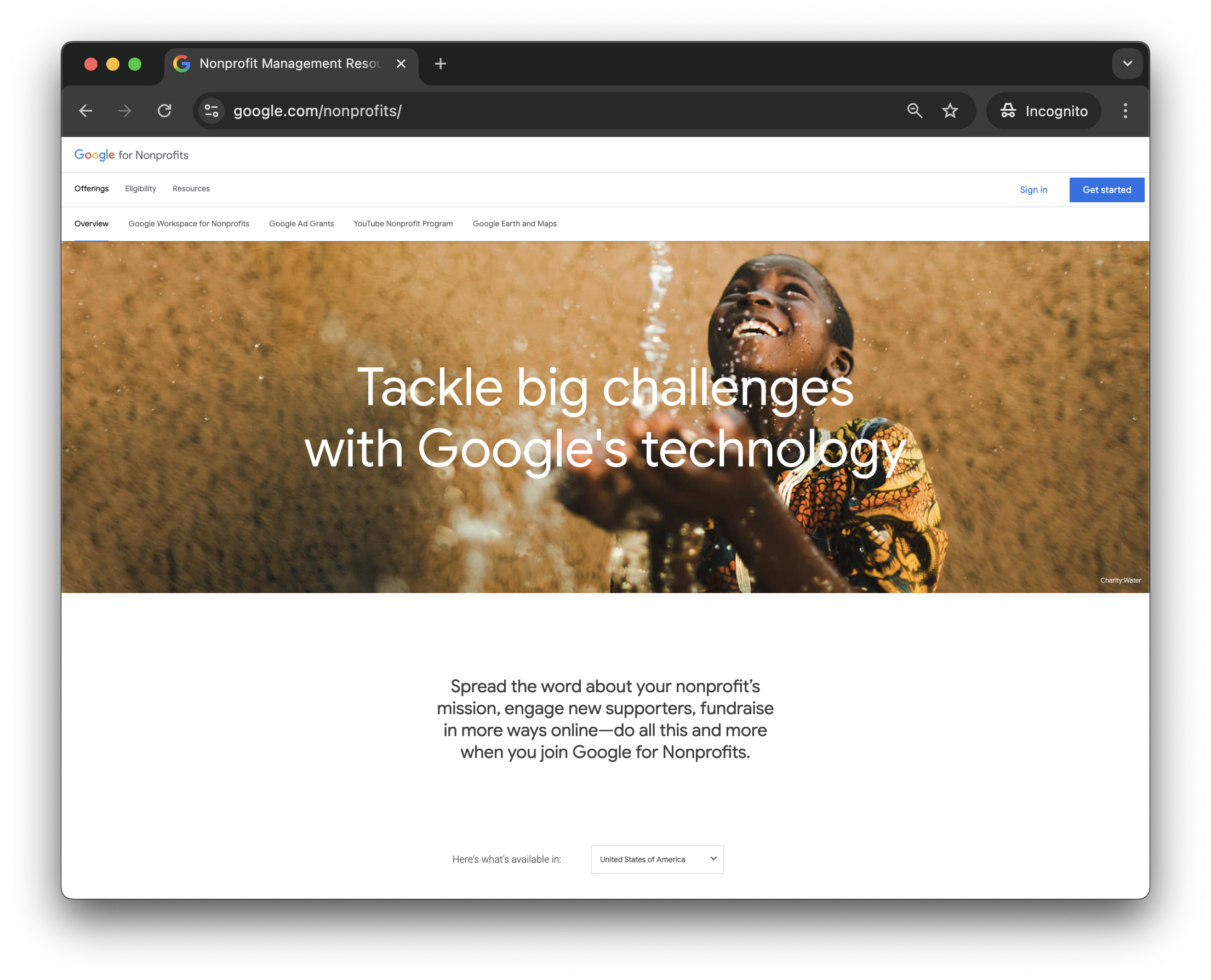
Before you can access the Ad Grant, you need a Google for Nonprofits account.
Visit: google.com/nonprofits
Sign in with the Google account you want to manage the Grant
Complete the registration details
Once approved, you’ll see the Google Ad Grants product appear in your dashboard.
Step 3: Activate Google Ad Grants
-
Step 3: Activate Google Ad Grants -
Inside Google for Nonprofits:
Choose Activate under Google Ad Grants
Complete the short eligibility assessment
Submit your website for review
Accept the programme policies
Google will check your site for clarity, usability and safety. This process can take a few days.
Step 4: Create Your Google Ads Account (The Right Way)
-
Step 4: Create Your Google Ads Account (The Right Way) -
This is where many charities go wrong. The Ad Grant requires a special type of Google Ads account, not a standard paid one.
Inside Google for Nonprofits:
Click Activate Google Ad Grants
Google creates a pre-configured account for you
Do not upgrade to a “Smart” or “Paid” account
Do not add billing details
Once inside the account, it will look like a normal Google Ads account, but with Grant rules applied.
Step 5: Build Your First Campaigns
-
Step 5: Build Your First Campaigns -
Google has some strict rules about account structure. To stay compliant:
Use Search campaigns only
No Display, no YouTube, no Performance Max
Have at least 2 ad groups per campaign
Use at least 2 ads per ad group
Include sitelinks and other extensions where possible
Choose keywords with a clear connection to your mission
Avoid single-word keywords and extremely generic terms. For example:
Good: “marine conservation volunteering”, “donate to wildlife charities UK”
Bad: “donate”, “environment”, “wildlife”
Your aim is to help people genuinely looking for your work find you more easily.
Step 6: Submit for Pre-Launch Review
-
Step 6: Submit for Pre-Launch Review -
Before the Grant is activated, Google requires a final check.
Inside the Ad Grants activation page:
Enter your Google Ads customer ID
Confirm your campaigns meet the structure guidelines
Submit for review
This process checks:
Campaign structure
Policy compliance
Keyword suitability
Website quality
Once approved, your Grant will switch on and begin serving ads.
Step 7: Keep the Account Healthy
-
Step 7: Keep the Account Healthy -
The Google Ad Grant has ongoing rules you need to meet, including:
A 5% minimum CTR across the account
No single-word or overly generic keywords
Regular activity (log in at least monthly)
Conversions set up through Google Analytics or GA4
Most charities fall out of compliance because they don’t have time to maintain the account. If you stay on top of it, the Grant can become a steady, reliable source of traffic.ssure, just friendly guidance.